
Eloi Puertas i Prats
Version control also known as Revision control, source control is the management of changes to documents, programs, and other information stored as computer files.
They are used in virtually all software development and in all environments, by everyone and everywhere VCS can used on almost any digital content, so it is not only restricted to software development, and is also very useful for manuscript files, figures, data and notebooks!
Without a VCS, it happens situations like these:
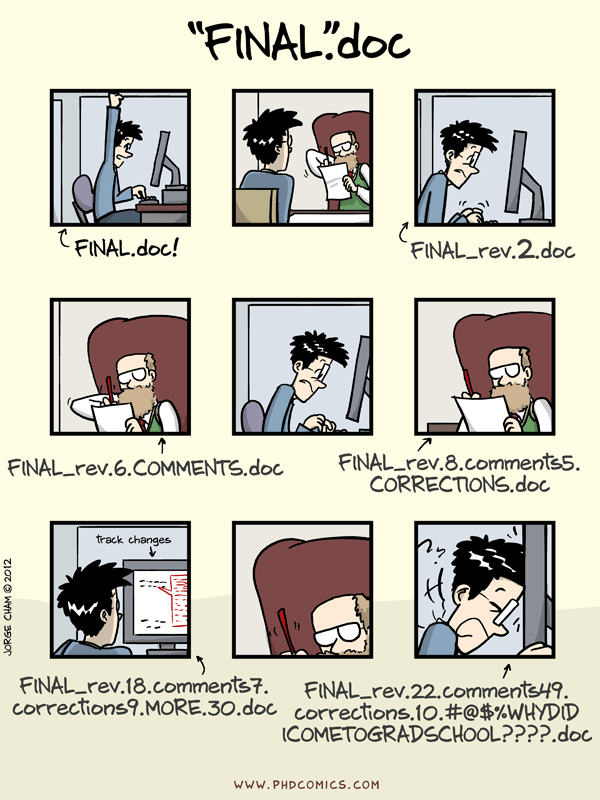 "Piled Higher and Deeper" by Jorge Cham, http://www.phdcomics.com
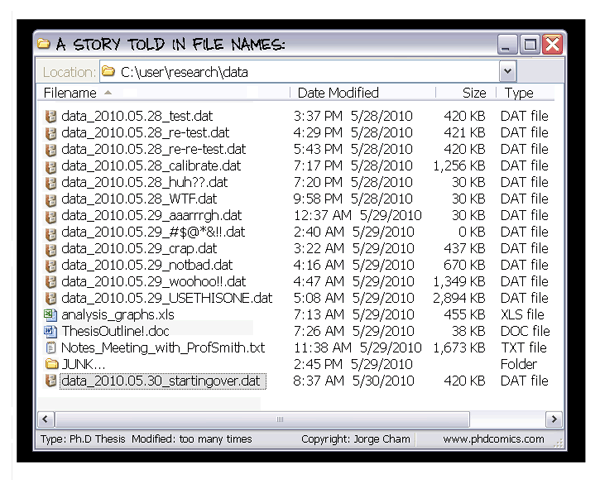
"Piled Higher and Deeper" by Jorge Cham, http://www.phdcomics.com
There are two main purposes of VCS systems:
In an VCS, the source code or digital content is stored in a repository.
The repository does not only contain the latest version of all files, but the complete history of all changes to the files since they were added to the repository.
A user can checkout the repository, and obtain a local working copy of the files. All changes are made to the files in the local working directory, where files can be added, removed and updated.
When a task has been completed, the changes to the local files are commited (saved to the repository).
If someone else has been making changes to the same files, a conflict can occur. In many cases conflicts can be resolved automatically by the system, but in some cases we might manually have to merge different changes together.
It is often useful to create a new branch in a repository, or a fork or clone of an entire repository, when we doing larger experimental development. The main branch in a repository is called often master or trunk. When work on a branch or fork is completed, it can be merged in to the master branch/repository.
In Client-Server VCS the repository is hosted by a server. A client program is used for managing versions of the local working copy
The most important client-server open-source VCS are:
In Distrubutd VCS code is shared by different repositories. In general, it exists a local repository along the local working copy, and a remote repository for collaborating.
With distributed VCS we can pull and push changesets between different repositories. For example, between the local copy of the repository to a central online reposistory (for example on a community repository host site like github.com).
The most important distributed open-source VCS are:

With a hosted repository it easy to collaborate with colleagues on the same code base, and you get a graphical user interface where you can browse the code and look at commit logs, track issues etc.
Some good hosted repositories are
Github.com is a web hosting plateform for git projects. It provide free git repository for opensource projects (private ones can be purchased, or asked for free for students) as well as it provides great tools to review code, manage projects, release packages and publish documentation. Most of the scientific python code you will use in this course are hosted on github.
Bitbucket.com provides unlimited private code repositories for free for teams up to 5 developers
There are also a number of graphical users interfaces for GIT. The available options vary a little bit from platform to platform:
If you preffer, you can use the command line:
Now, let’s go on github.com, and create an account:
Once this is done, we can easily create a new project by cliking on the green button, on the main page:
Github redirects you to a page, where you specify the name of the repository and a few information. By default, git repositories hosted on github will be public. Github then displays a page with a url, and some information on how to proceed to configure your local repository. Note that if you decide to create a README file, a Licence or a .gitignore on github, it will automatically commit.
Hands On
Create a Repository called Github-Introduction in your github account
First, we have to clone the remote repository. The name of the repository can be found at the right part of the screen:

You can clone the repository through you Github Desktop client by clicking in button Clone in Desktop
Next, your Github Desktop will open. You will be asked for what directory you want to clone the repository. Then the Github Desktop will open.
From now on, all changes to this repository will be shown in the Changes tab.
Just type:
The first time you will use the git command line you should configure a personal access token:
Hands On
Download the snake.py file. Put this file in a directory called src inside your Github-Introduction repository
Now you can observe that exists changes in your local copy. The first thing to do, is add this document to the Local Repository. In your Desktop client it would by tagged as New. Now write a comment on the Summary text area and commit the changes to your Local repository. This can be done by pressing the commit button.
You can observe that exists changes in your local copy using
The first thing to do, is add this document for tracking. Type
Next is to commit changes to your Local Repository using
The changes have not been upload to remote repostitory yet. If you check your repository on github.com, you'll see that the changes are not present. To do this you need to push your changes.
In the menu Repository select Push option. Now the changes are published to the remote repository
Type:
Now the changes are published to the remote repository
You can use any IDEs as Github client since all of them have integration with git. Just clone the repository to a local directory and create or open an existing project in the repository. Github has a web editor integrated based on visual studio. Just press the '.' (dot) key in any repository and the web editor will be opened (or just change github.com/ by github.dev in the beggining of URL repository web page).

Hands On
Set up the Github-Introduction repository in any of your IDE's you are using now.
Sometimes you don't need to create a new repository from the scratch. You can fork a repository from another existing. From this moment you can change your forked repository without affecting the original one. Even, if you want, you can synchronize again your repository with the original one to get any new updatedes. For forking just press the Fork button on top right screen in any repository and put the name you prefer for your forked repository.
Hands On
Fork the eloipuertas/Github-Introduction repository in your github account.
Hands On
Now we're going to form teams of two people. One of the members of the group will add the other github user to his/her repository. To do this go to Settings tab and add your other team members using Collaborators option.
Now follow the next steps:
Github-Introduction RepositoryGithub-Introduction and open the copy of this document. What happens ?
Pull the repository to update the changes in your local repositories. (In desktop client, in the menu Repository select Pull option) (In command line: git pull)
It have ocurred any conflict? If it does,
history tab to see the different updates of the repository. Who made what. (In command line: git log)git diff)git checkout -- <file>git reset -- <file>git reset --soft HEAD~1git reset --hard HEAD~1git rebase -i master makes rebasing interactive, so you can see which commits will be created. The golden rule of git rebase is to never use it on shared branches.
Two people are editing the same file:
A file has been removed while you were editing it.
git rm.Now do the same thing but using the notebook file instead of the python file. Upload your version of notebook, and the rest of the group change it, putting news cells with comments and avalauation.
You can see in the github repository how your collaborative notebook looks like.
If there is a conflict, talk with last person that change the file, and decides which changes are valids.
Work in one file at same time and commit very frequently.
When conflicts Keep Calm and Ask for Help


How to build a branch:
git branch <branch_name>How to change to an other branch:
git checkout <branch_name>How to do the above two together:
git checkout -b <branch_name>How to delete a branch:
git branch -d <branch_name>How to change the name of a branch:
git branch -m <new_branch_name>How to merge a branch to the current branch:
git merge <branch_to_merge>Create new branch for the specific feature and change to it:
Work in this branch until the end of implementation and testing.
Merge branch to dev:
Fix merge conflicts.
You can create a local repository in your machine instead of using a distant repository.
In the GitHub Desktop client press the + symbol and go to the Create tab. It ask you for a repository name and the local path. Once create it you can commit new versions.
Hands On
create a new remote Repository called gitdemo and edit the README file so it explains the purpose of the repository
create a local clone of th repository (use the big green button on the top right of github to get the URL)
In your local clone of the repository, open this file (README.md). At the top of the file, underneath the title, type: "I'm [your name] and I edited this file!"
Check the status. You'll need to add the changes to this file and commit. Make sure you give a proper description of the changes.
Our primary remaining task is to push our code back to GitHub.
Go to GitHub and check that your changes are now in GitHub as well
Now make a change on the README file from GitHub
Pull the latest version of the file to your local repo.